Connecting an MCP server
Add an external service to AltStudio by connecting its MCP server and authenticating it.
Connecting a service makes its tools available throughout AltStudio. Connections live in Settings → Connectors.
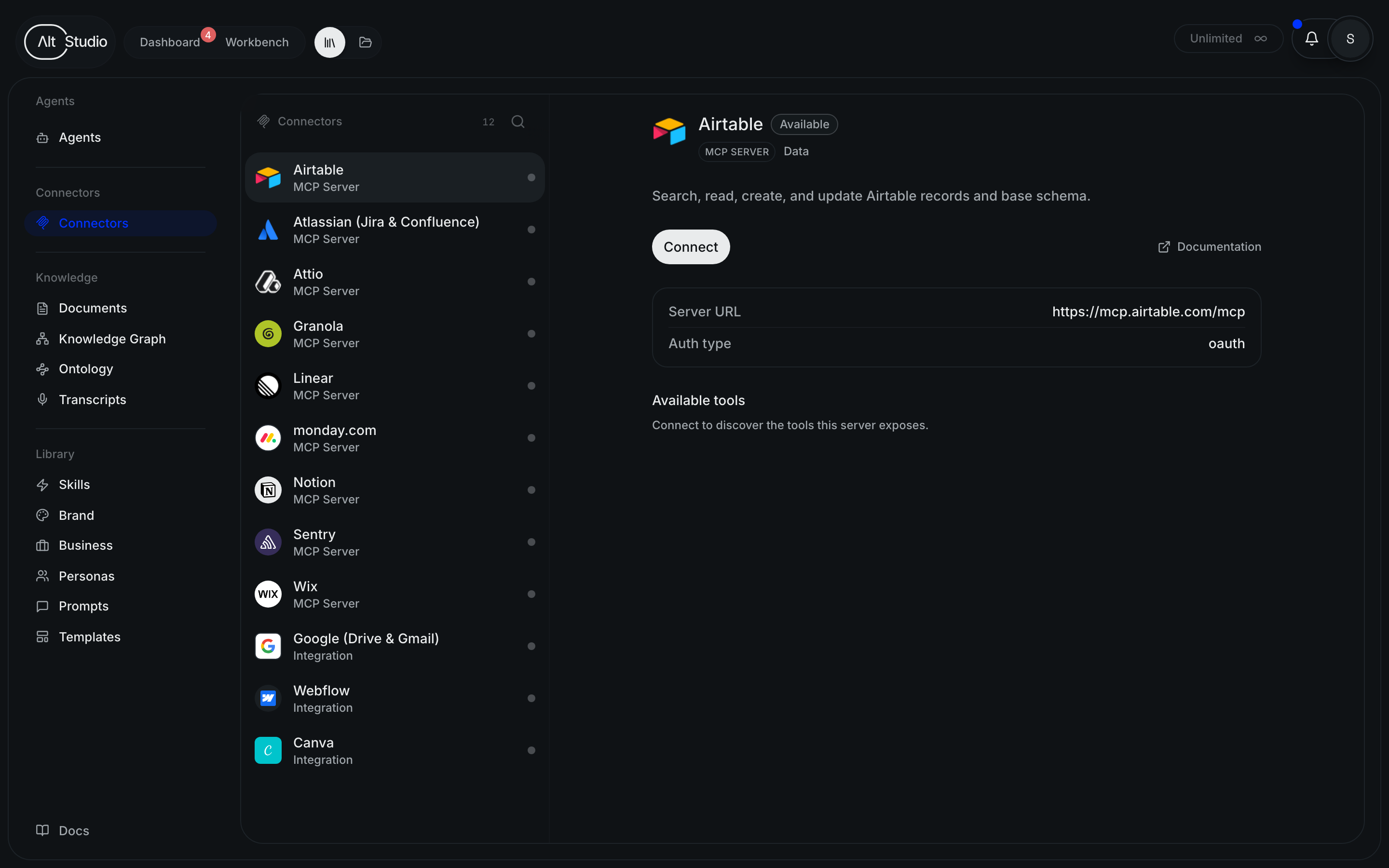
Open Settings → Connectors
Go to Settings → Connectors. This is where every connection is added and managed, and where you'll see the status of the ones you already have.
Add the server
Add the MCP server for the service you want to connect by providing its address. AltStudio uses this to reach the server and find out what it offers.
Authenticate
Authenticate the connection so AltStudio can act on your behalf. Depending on the service, this is either an OAuth sign-in flow or an API key you provide.
Discover tools
Once connected, AltStudio discovers the tools the server exposes — the specific reads and actions that service supports. You can review the available tools and confirm the connection is healthy.
If a connection shows an error — for example, authentication expired — reconnect or re-authenticate it from Settings → Connectors to restore its tools.