Canvas basics
The visual node-graph workspace — when to use it, how nodes and connections work, and how to start one.
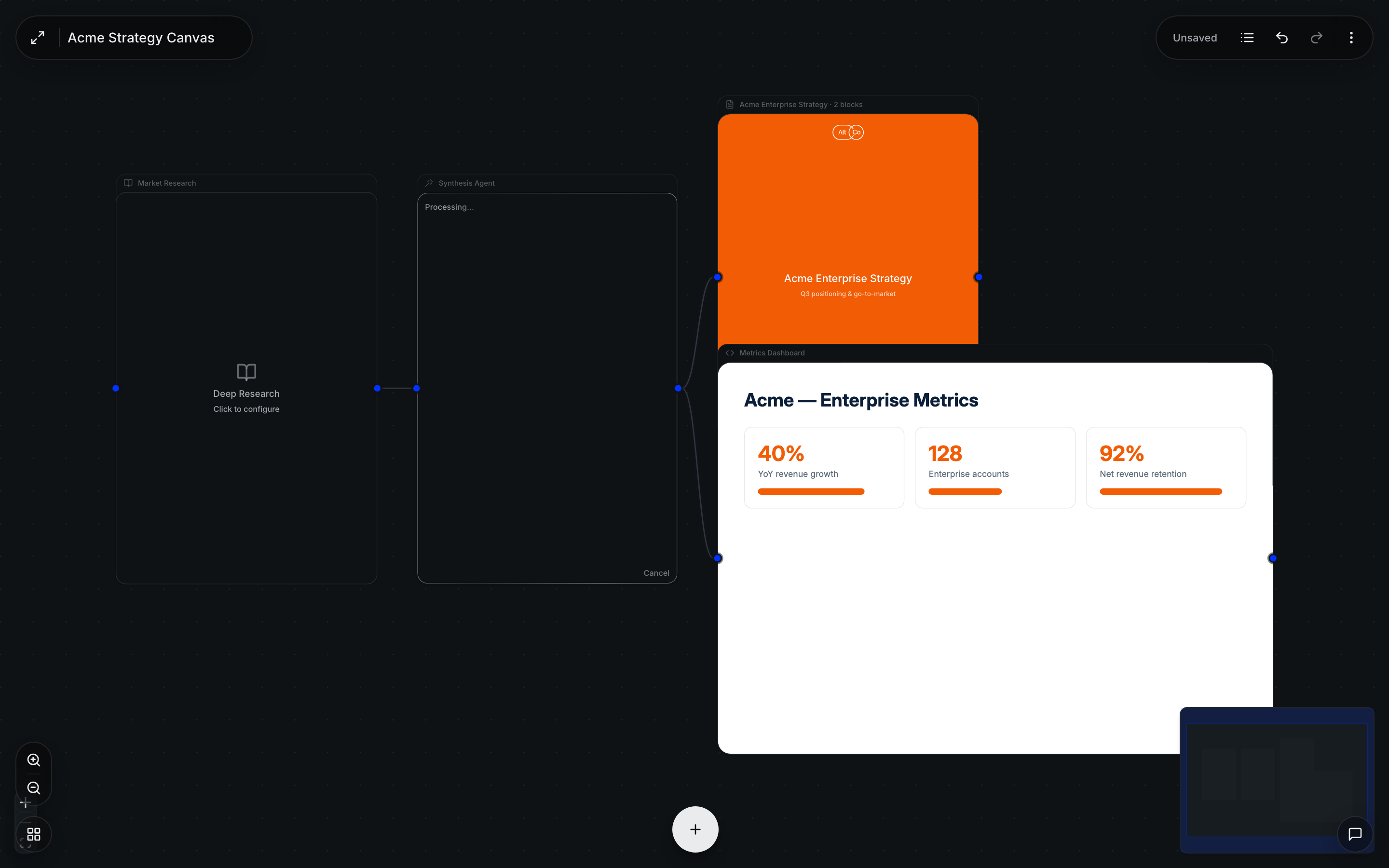
The canvas is a visual workspace where you compose work as a graph. Each step is a node; edges connect them, and results flow along the connections. It's the surface to reach for when work has structure — multiple steps, branches, or pieces that feed into each other — and you want to see and rerun the whole shape rather than hold it in a single conversation.
Nodes and connections
A node is one unit of work: an AI step, a web search, a document, an image, and so on. You wire nodes together by drawing an edge from one node's output to another's input. When a node runs, its result becomes available to everything downstream — so a research node can feed a synthesis step, which feeds a document.
Because the graph is explicit, you can branch (one result feeding several downstream nodes), merge (several inputs into one step), and rerun any part of it without redoing the rest.
Starting a canvas
There are two ways in:
- Ask Alto to build one. In the Workbench, describe a multi-step outcome and ask Alto to build a canvas. It lays out the nodes and connections for you — a fast way to get a working starting point.
- Build it yourself. Open a new canvas and add nodes directly, connecting them as you go. Best when you already know the shape you want.
A good rule of thumb: if a request is one ask-and-refine loop, stay in the Workbench. If it has distinct stages — research, then analysis, then a deliverable — a canvas keeps the structure visible and repeatable.
Templates
Common shapes can be saved and reused as templates — clone one to start a new canvas with its nodes and connections already in place, instead of rebuilding a workflow from scratch each time.
Collaboration
Canvases support inline comments with mentions, so teammates can discuss a specific node in context rather than over a separate thread.